Wireless Internet (Wi-Fi)
Every member of the Klaipedos valstybine kolegija community can use wireless internet and the Eduroam service on the institution premises.
Eduroam (eng. Education Roaming) is an international wireless access network (Wi-Fi) for academic organizations.
The Eduroam wireless network allows internet access not only at Klaipedos valstybine kolegija but also at other participating organizations. A user from an academic institution can connect to another institution’s wireless network using the same username and password as they would at their home institution.
- Eduroam service locations in Lithuania: https://www.eduroam.lt/zemelapis
- Eduroam service locations worldwide: https://eduroam.org/where
Connecting with a Windows 10 Computer
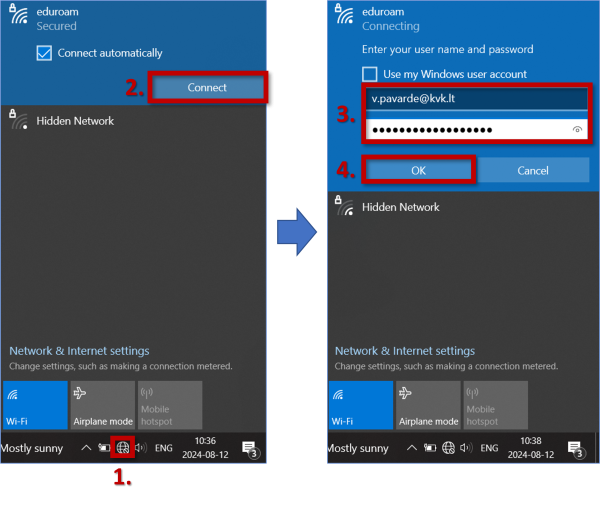
1. On the right side of the screen, click on the globe or computer icon. Ensure that Wi-Fi is turned on and click on “eduroam”.

2. Check the Connect automatically box and click Connect.

3. Enter your college email address (n.surname@kvk.lt or nam.surname@kvkedu.lt) in the top field and your email password in the bottom field, then click OK.

4. Click Connect.

5. Once successfully connected to the wireless network (Wi-Fi), you will see Connected, secured under the “eduroam“ name.

Connecting with an Android Device
Connection steps may vary depending on the phone model, Android version and the institution, you are connecting to.
Example with Samsung Galaxy A21s:
1. Swipe down from the top of the screen to open the menu. Hold the “Wi-Fi” button until the Wi-Fi menu opens.

2. In the Wi-Fi options window, ensure Wi-Fi is turned on and select the “eduroam” network.

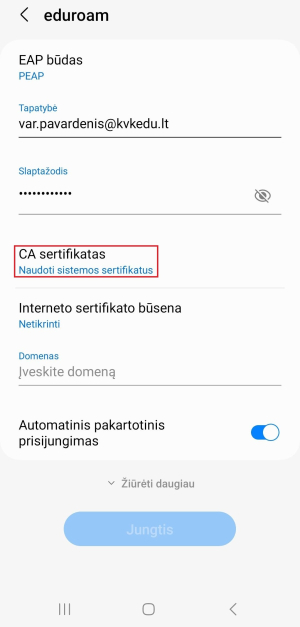
3. Configure the settings as follows:
- EAP method: PEAP.
- Identity: Enter your institutional email address (n.surname@kvk.lt or nam.surname@kvkedu.lt).
- Password: Enter your institutional email password.
- CA certificate: Use system certificates.
- Domain: kvk.lt
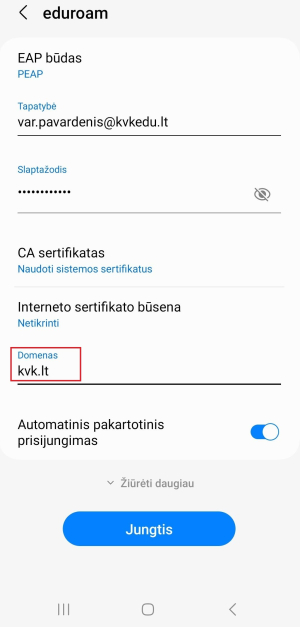
4. Click Connect.
5. Once successfully connected, the status will show “Connected”.

Why can't I connect to the wireless internet? Why is the Wi-Fi not working?
While using the college's wireless internet, it is strictly prohibited to:
- Use p2p programs (e.g., „BitTorrent“, „µTorrent“, „eMule“ etc.).
- Visit gambling or pornographic websites.
- Distribute copyrighted materials (e.g., movies, music, software, computer games, etc.).
If these rules are violated, the user's device is blocked, and wireless internet is inaccessible for 1 hour. If prohibited activity is detected again after the blocking period, internet access is blocked again for 1 hour.
If you have not violated the above rules but still cannot connect to the wireless internet, your device may have an incorrect DNS configuration, meaning the DNS server address is not set to be obtained automatically. Or your previous login, used before the password change, is still saved.
How to change DNS settings on a Windows 10 device?
1. In the desktop search box, type “control panel” and click on the Control Panel search result.

2. In the opened window, click on Network and Internet.

3. Select Network and Sharing Center.

4. Click Change Adapter Settings.

5. Right-click on Wi-Fi (1.) and select Properties (2.).

6. Check the box next to Internet Protocol Version 4 (TCP/IPv4). Click Properties.

7. Set it Obtain DNS server address automatically. Click OK. Click OK again.

8. Try connecting to the wireless internet again.
What to Do if the Previous Password Used Before It Was Changed Is Still Saved?
If you recently changed your login password, it may be the reason why you can no longer connect to the wireless network. The Wi-Fi login credentials do not automatically update or get removed. To update your Wi-Fi login information:
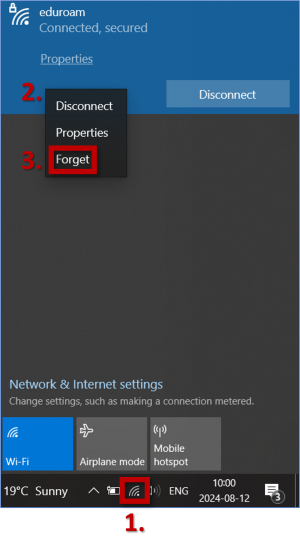
1. Open the Wi-Fi selection window.
2. Right-click on the eduroam wireless network.
3. Select Forget.
4. Click Connect.
5. Enter your new login credentials and click OK.